How to resize your photo and signature for exam forms (step by step)
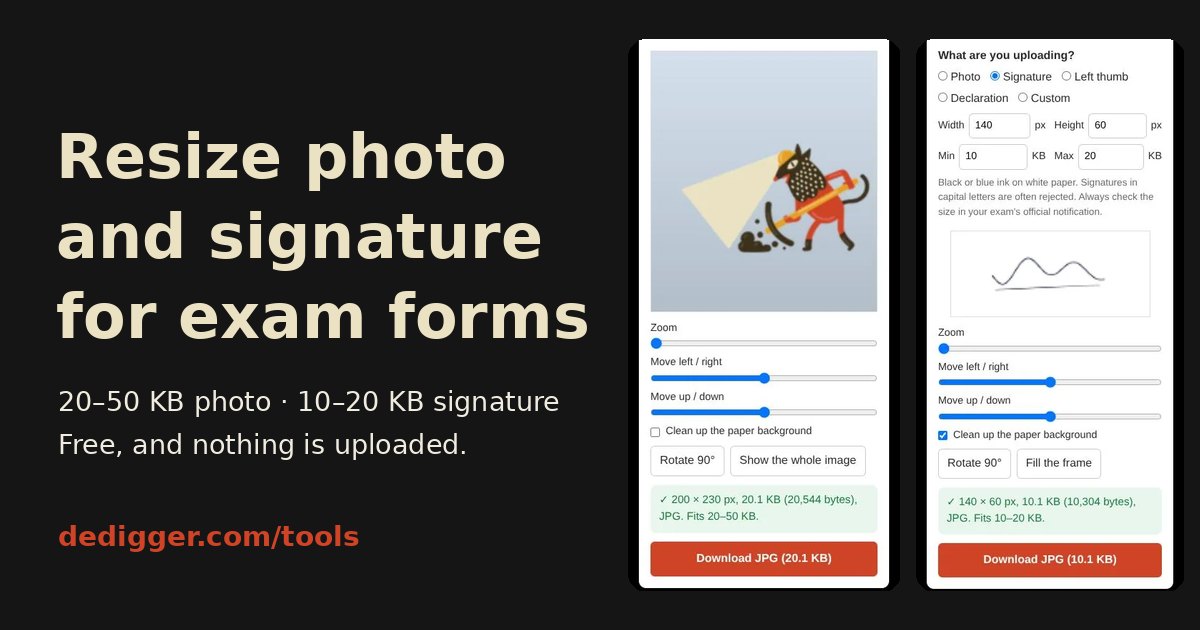
Almost every online application form for a recruitment exam, a bank job or a university admission asks you to upload a photo and a signature in a very specific size: so many pixels wide, so many pixels high, and between a minimum and a maximum number of KB. If the file is a little too big, or even too small, the form rejects it. This guide shows how to get both files right on your phone in a couple of minutes with our free photo and signature resizer for exam forms.
The resizer runs in your browser. Your photo and signature are never uploaded to dedigger or anyone else: they stay on your device the whole time.
What size do exam forms ask for?
Each exam sets its own rules, and they change from year to year. These are the sizes many bank and recruitment forms have used, such as IBPS-style forms:
| Document | Pixels | File size |
|---|---|---|
| Photo | 200 × 230 | 20–50 KB |
| Signature | 140 × 60 | 10–20 KB |
| Left thumb impression | 240 × 240 | 20–50 KB |
| Handwritten declaration | 800 × 400 | 50–100 KB |
Always check the official notification of your exam before you upload. It lists the exact pixel size, the KB range and the file type (almost always JPG). Some exams have changed how they work: SSC, for example, now takes your photo live with the camera during the application and only asks you to upload the signature.
Before you start: take good pictures
- Photo: stand in front of a plain, light-coloured wall in daylight, look at the camera and keep your face in the middle. Many forms don't accept caps or dark glasses.
- Signature: sign with a black or blue pen on plain white paper. Many forms reject signatures written in capital letters. Photograph the paper flat, from straight above, without your shadow on it.
- Thumb impression and declaration: same as the signature: black or blue ink, white paper, good light.
You don't need to crop or edit anything before you open the tool. It does that for you.
How to resize your photo and signature: step by step
Step 1: Choose the image and what you're uploading
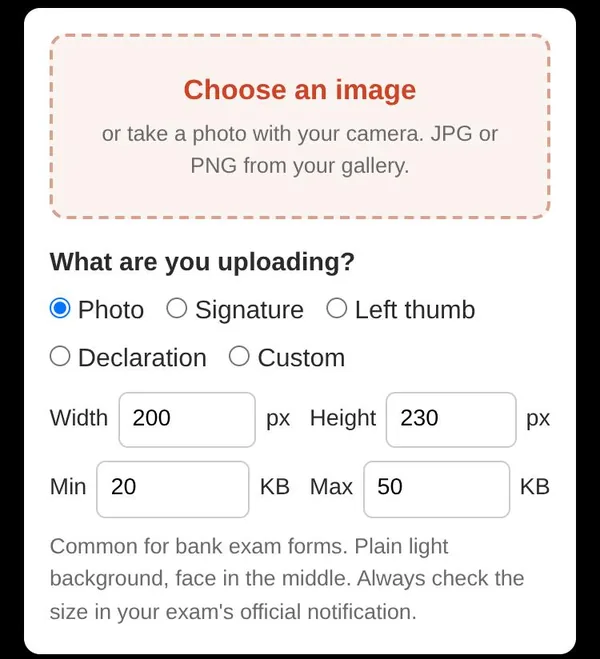
Open the exam form resizer and tap Choose an image. On a phone you can pick a picture from your gallery or take a new one with the camera.
Then tell the tool what the image is: Photo, Signature, Left thumb or Declaration. Each one fills in the common pixel size and KB range from the table above. If your exam asks for something different, choose Custom and type the width, height, minimum and maximum KB from your notification.
Step 2: Adjust the preview
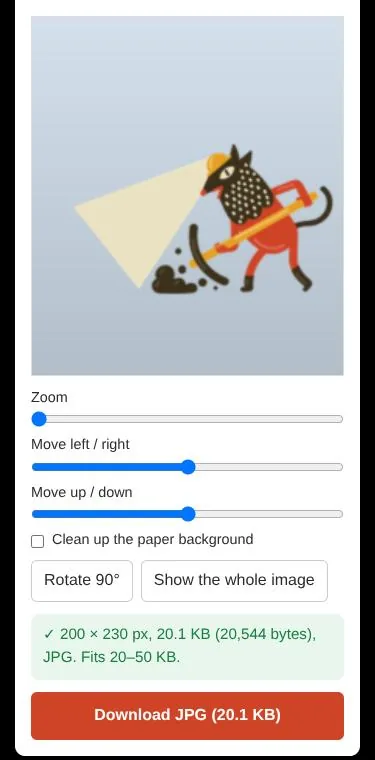
The preview shows exactly what your file will look like at the final size. Use the sliders until it looks right:
- Zoom to get closer, for example so your face fills more of the photo.
- Move left / right and Move up / down to place your face or signature in the middle.
- Rotate 90° if the picture came out sideways.
- Show the whole image fits the entire picture in the frame instead of filling it, which is handy for signatures and declarations.
Step 3: Clean up the paper (signatures)
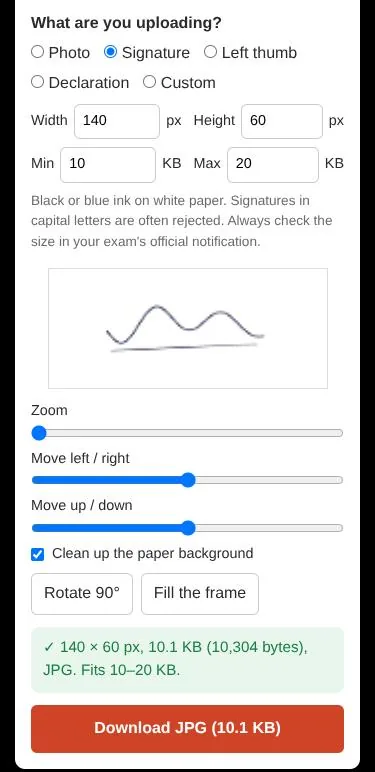
A signature photographed with a phone usually comes out on greyish paper with shadows, and some forms reject that. For signatures, thumb impressions and declarations, Clean up the paper background is switched on: it turns the paper white and keeps your ink. If your signature looks too thin, switch it off and compare.
Step 4: Check the size and download
Under the preview, a green line confirms the result, for example: 140 × 60 px, 10.1 KB (10,304 bytes), JPG. Fits 10–20 KB. Tap Download JPG and the file is saved to your phone, ready to upload to the form.
If the line is red, the tool tells you why. The usual reason is a pixel size that is too large for the maximum KB: lower the width and height, or check that you typed the KB range correctly.
Why the file passes both ways of counting KB
Some websites count a kilobyte as 1,000 bytes and others as 1,024. A file of 50,500 bytes is 49.3 KB for one form and 50.5 KB for another, so it can be accepted by one and rejected by the next. The resizer avoids that: every file it makes fits your range under both definitions.
If a picture is so simple that it comes out below the minimum size, which happens with clean signatures, the tool adds a few invisible bytes of padding inside the JPG. The image itself doesn't change by a single pixel; the file is just big enough for the form to accept it.
If the form still rejects your file
- Check the notification again: some forms ask for a different pixel size for the photo and the signature, or only accept
.jpgand not.jpegin the file name. - Make sure you uploaded the right file in the right box: photo in the photo field, signature in the signature field.
- Try another browser or clear the form page and upload again. Some application portals are slow during the last days before a deadline.
Keep your documents ready for the next form
Once you have files that work, keep them in a folder on your phone or in your cloud storage, named clearly, such as photo-200x230.jpg and signature-140x60.jpg. You'll reuse them for the next application. When you're also preparing your CV for job applications, our guide to free resume templates shows where to find good ones that work in Google Docs.
Frequently asked questions
Is the resizer free?
Yes. There's nothing to install and no account to create.
Is my photo uploaded anywhere?
No. Everything happens in your browser, on your device. Your photo and signature are never sent to dedigger or anyone else.
Does it work on a phone?
Yes. It was made for phones first: you can take the picture with the camera and download the result straight to your gallery or downloads.
Can I use it for a size that isn't in the list?
Yes. Choose Custom and type the width, height and KB range from your exam's notification.
My form asks for the size in centimetres. What do I enter?
Online upload checks usually test the file size in KB, and sometimes the pixel size, rather than centimetres. Use the pixel size if the notification gives one. If it only gives centimetres, look at the upload instructions on the application portal itself, which often state the pixel size it expects.
Open the photo and signature resizer and get your files ready in a couple of minutes.
One search tip a week, plus our new guides: follow dedigger on WhatsApp.