
Word counter in Google Docs: words, characters and pages
Some links in this guide are affiliate links: if you buy through them, dedigger may earn a commission at no extra cost to you. Commissions do not decide what we include, and we also list options that pay us nothing.
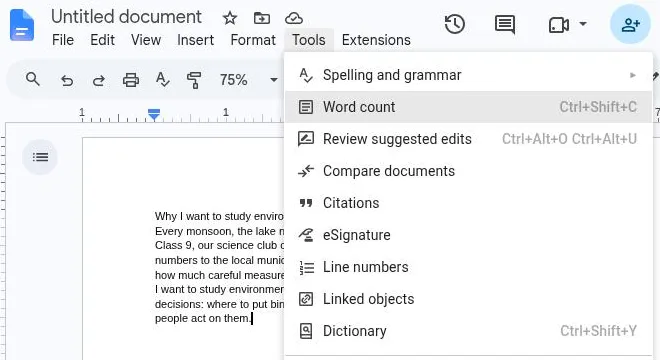
Google Docs has a built-in word counter. On a computer, click Tools > Word count or press Ctrl + Shift + C (⌘ + Shift + C on a Mac). On an Android phone, open the document in the Docs app, tap More (the three dots) and then Word count. This guide shows each method, how to count only part of a document, how to keep the count on screen while you type, and how to stay inside the word and character limits of essays, assignments and application forms.
How to open the word counter in Google Docs on a computer
There are three ways to open the same window. Use whichever is quickest for you.
- From the menu. Open your document, click Tools at the top of the page and choose Word count.
- With the keyboard. Press Ctrl + Shift + C on Windows or a Chromebook, or ⌘ + Shift + C on a Mac. These are the shortcuts Google lists on its Docs keyboard shortcuts page (as of November 2026).
- With the Tool finder. Press Alt + / (Option + / on a Mac), type
word countand press Enter. The Tool finder used to be called "Search the menus", and it is handy whenever you forget where a feature lives.
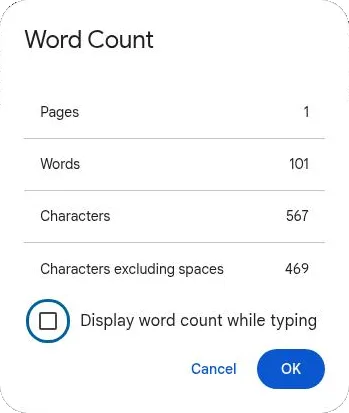
The window shows the number of pages, words and characters in the document. Click OK or Cancel to close it. Nothing in your document changes: the counter only reads it.
What the numbers mean
- Pages: how many pages the document takes with its current page size and margins. Change the paper size or the font and this number changes too.
- Words: the figure most teachers and forms ask for.
- Characters: every letter, number, punctuation mark and space.
- Characters excluding spaces: the same count with the spaces left out.
Google's help page notes one detail that catches students out: unless you select part of the document, the count covers everything except headers, footers and footnotes. If your essay puts its references in footnotes, they are not in the total. Check with your teacher whether footnotes count toward the limit, because rules differ.
Count the words in a selection
Often you only need the count for one part: a single answer in a long assignment, the abstract of a project report, or the "Why do you want to join?" paragraph you drafted for an application.
- Select the text with your mouse or trackpad. To select a whole paragraph quickly, click three times inside it.
- Open the word counter with Tools > Word count or Ctrl + Shift + C.
The counts now cover only the selected text. Deselect it and open the counter again to see the totals for the whole document.
A practical habit: keep every answer of a multi-part form in one Google Doc, one under the other, with a heading for each. Select an answer, check its count, and paste it into the form only when it fits. You keep a copy if the form times out, and you can reuse good answers later.
Display the word count while typing
If you are writing toward a limit, opening the window again and again gets tiring. Docs can keep a small counter at the bottom left of the page instead.
- Open the word counter with Tools > Word count.
- Tick Display word count while typing.
- Click OK.
A word count box now sits in the bottom left corner and updates as you write. Click it to switch between Pages, Words, Characters and Characters excluding spaces, so you can watch whichever number your limit uses. To remove it, click the box and choose Hide word count.
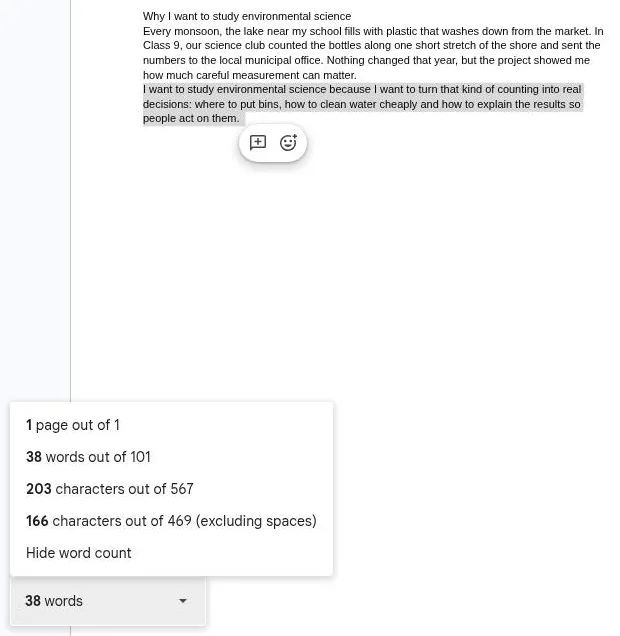
Google suggests this for shorter documents such as school essays and news articles. For a long report you only need to check now and then, the normal window is enough.
Word count in the Google Docs app on Android
The Docs app on Android has a word counter too, with slightly different numbers.
- Open the Google Docs app and open your document.
- Tap More, the three dots at the top right.
- Tap Word count.
The app shows Words, Characters and Characters excluding spaces. It does not show a page count. The steps are the same in the Docs app on an iPhone or iPad.
If you write long answers on your phone, draft them in Docs first rather than straight into a form in the browser. Forms on mobile sites rarely show a running count, and a slip of the thumb can wipe what you typed.
When the word counter is missing
If Word count is greyed out or not in the menu, the file is probably not a Google Doc. The most common case is a Word file (.docx) you opened from Drive: Docs edits it in Office compatibility mode, where some features are missing. Google's help pages say word count isn't available in that mode.
The fix is to make a Google Docs copy. Click File > Save as Google Docs and open the new copy. The counter will be there. The same step unlocks other tools, which is also why you need it before you translate a document in Google Docs. Keep in mind that a translation rarely has the same word count as the original: Hindi or Tamil text and its English version can differ a lot, so count the version you will actually submit.
Google Sheets and Google Slides have no word counter. If you need to count the words in a slide's speaker notes or in a long cell, copy the text into a blank Google Doc and count it there.
Staying inside word and character limits
Most of the time you open the word counter because someone set a limit: an essay of 1,500 words, a statement of purpose of one page, a 250-word abstract, or a scholarship form box that stops accepting text at a certain number of characters. A few habits help.
Know which number the limit uses
"Words" and "characters" are not the same, and online forms usually count characters. If a form says "maximum 1000 characters" and doesn't mention spaces, plan for the spaces to count, and watch the Characters number, not Characters excluding spaces. If the instructions say "excluding spaces", use the other one.
Expect small differences between tools
Different apps split words in slightly different ways. Hyphenated words, numbers, dates, URLs and symbols can be counted as one word in one app and two in another. If your teacher checks in Microsoft Word or a submission portal and you check in Docs, the totals may differ by a few words. Leave a small margin below the limit instead of landing exactly on it.
Cutting words without losing meaning
- Remove filler phrases. "In order to" becomes "to", "due to the fact that" becomes "because", and "at this point in time" becomes "now".
- Cut the warm-up. First drafts often spend a sentence or two saying what the essay will say. Start with your point.
- Prefer active sentences. "The survey was conducted by our team" (7 words) becomes "Our team ran the survey" (5 words).
- One example, not three. A single strong example usually persuades more than a list of weak ones.
Once the text fits, proofread it. A free checker such as Grammarly catches spelling, grammar and punctuation slips, and it works inside Google Docs through its browser extension. Read its suggestions before accepting them: the goal is your own voice, just shorter.
Going over the minimum
Some assignments set a minimum instead of a maximum. Padding with filler is easy to spot. Add substance instead: an example from your own experience, a short explanation of a term you used, or a counter-argument and your answer to it.
Frequently asked questions
What is the shortcut for word count in Google Docs?
Press Ctrl + Shift + C on Windows or a Chromebook, or ⌘ + Shift + C on a Mac. It opens the same window as Tools > Word count.
Does the Google Docs word count include footnotes?
No. Unless you select text first, the count covers the whole document except headers, footers and footnotes.
Can I see the word count on my phone?
Yes. In the Google Docs app, open the document, tap More (the three dots) and then Word count. The app shows words, characters and characters excluding spaces, but not pages.
Why is Word count greyed out?
The file is probably a Word document open in Office compatibility mode. Use File > Save as Google Docs and open the new copy, where the word counter works.
One search tip a week, plus our new guides: follow dedigger on WhatsApp.