
What is metadata? Data about data, explained with examples
What is metadata? Metadata is "data about data": the details that describe a file or a message instead of being its content. A photo is the picture you see, and its metadata is the camera that took it, the date and time and, often, the place. A PDF is the text, and its metadata is the author's name, the program that made it and when it was edited. This guide explains the main kinds of metadata with everyday examples, why it matters for your privacy and for checking facts, and how to see and remove it yourself.
What metadata means, in plain words
Think of a parcel. The content is what's inside the box. The label on the outside says who sent it, who it's for, where it came from and when it was posted. You can learn a lot from the label without ever opening the box. Metadata is that label, and almost every digital thing carries one.
Most metadata is created automatically: the phone, the app or the computer fills it in for you, and it usually travels with the file when you send it. That's why people are often surprised by it.
Metadata isn't bad. It's what lets your gallery sort photos by date, your phone show pictures on a map and your email app group a conversation. The problem is only when it says more than you meant to share, or when someone trusts it more than they should.
Why metadata matters
Metadata matters for two reasons, and they pull in opposite directions.
- Privacy. A photo you post of your new room can carry the exact GPS position where it was taken, which is often your home. A CV saved as a PDF can carry your full name, your old employer's company name and the date you last edited it. If you didn't mean to share that, metadata shares it anyway.
- Verification. In open-source intelligence (OSINT), meaning research with information anyone can lawfully see, metadata is a useful clue. If someone claims a photo was taken today but its metadata says three years ago, that's worth checking. The OSINT tools page on dedigger has free checkers for photos and PDFs.
Keep both in mind: protect your own metadata before you share, and treat other people's metadata as a hint, never as proof.
How metadata works: the main kinds, with examples
Different kinds of files keep different metadata. Here are the ones you meet every day.
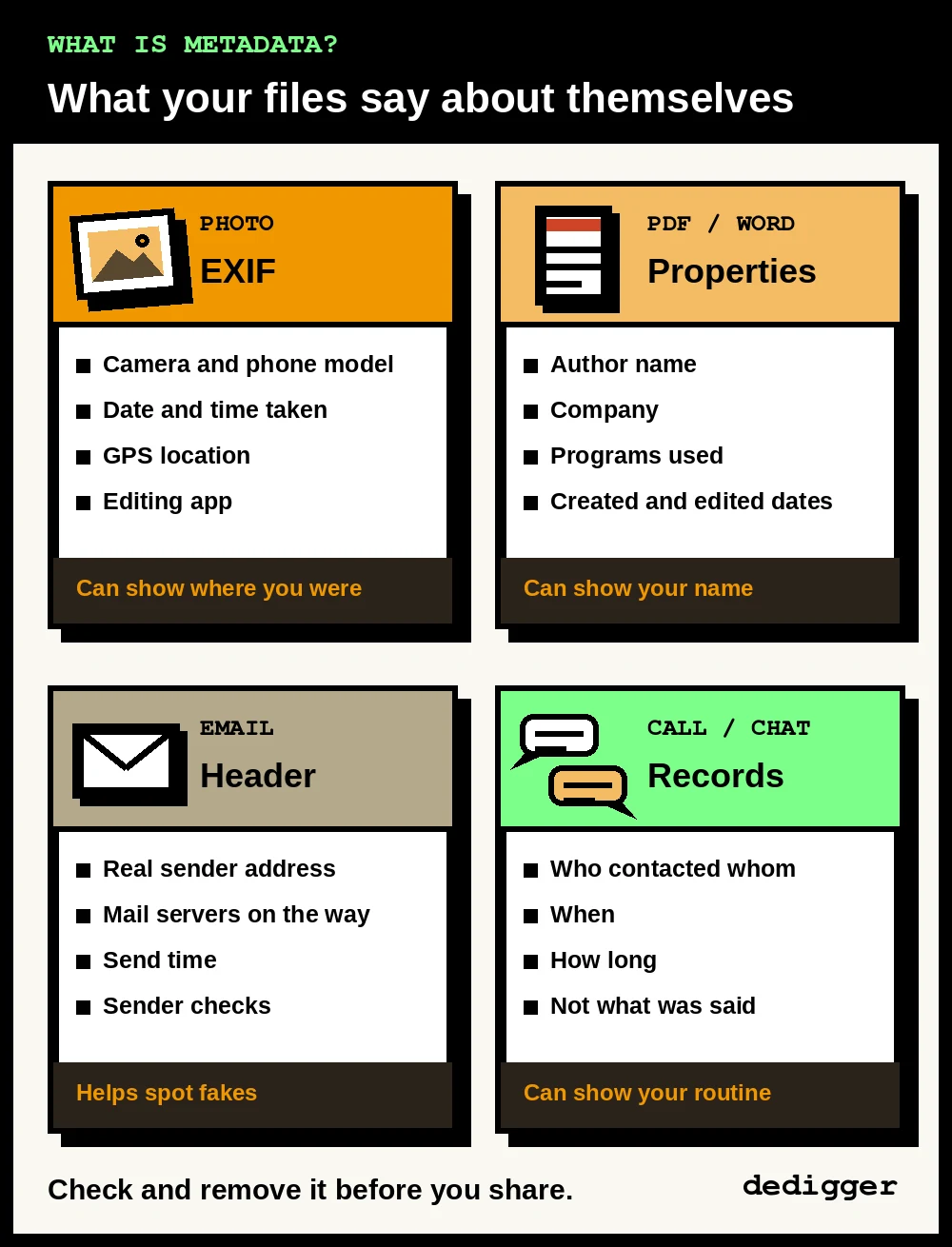
Photos: EXIF data
Photos taken with a phone or camera usually store their metadata in a format called EXIF (Exchangeable Image File Format). It sits inside the JPG file, next to the picture itself. Common EXIF fields are:
- Camera: the make and model of the phone or camera, sometimes the lens.
- Settings: exposure time, aperture, ISO, whether the flash fired.
- Date and time: when the photo was taken, as set on the device's clock.
- GPS location: latitude and longitude, if location tagging was on in the camera app.
- Orientation and software: which way the phone was held and which app last edited the photo.
On Android, whether the location gets saved depends on a setting in your camera app, often called "Location tags" or "Save location". Open the camera's settings to see yours.
PDFs and Office files
Documents keep their own metadata, usually called "document properties". A PDF can store a title, author, subject and keywords, plus the program that created it (for example a word processor) and the program that turned it into a PDF, with creation and modification dates. Word, Excel and PowerPoint files keep similar details: the author, the last person who saved it, the company name from the computer's settings and the total editing time.
That's how a "fresh" report can turn out to have been created years ago, or a document you think is anonymous can carry your name from the settings of your laptop.
Emails: the header
Every email has a header: lines of metadata above the message that you normally don't see. It lists the sender and recipient addresses, the date, the subject and, importantly, the chain of mail servers the message passed through, with times. It also records the results of checks that show whether the sending server was allowed to send for that address.
In Gmail on a computer, open a message, click the three-dot More menu next to Reply and choose Show original to see the full header, as Google explains on its Gmail help page about headers. Headers are one of the best ways to spot a fake email that pretends to come from your bank.
Calls and chats
For phone calls and messages, metadata is the "who, when and how long", not the "what". A call record shows which number called which, at what time and for how long, but not what was said. A chat app may protect your messages with end-to-end encryption, so only you and the other person can read them, while still knowing who you talk to and when. That pattern alone can reveal a lot: who your closest contacts are, when you sleep, when you travel.
Web pages
Web pages carry hidden tags too: a title and description for search engines, the preview image you see when you share a link, and sometimes the publication date.
Why metadata can be missing or wrong
Before you rely on metadata, remember three things.
- Many apps remove it. Most social networks and messaging apps strip much of a photo's metadata when you upload it, mainly to protect users. On WhatsApp, a photo sent the normal way is compressed and loses most of its EXIF data, including the location, while the same picture sent as a Document arrives as the original file with its metadata. Forwarded photos therefore rarely carry anything useful.
- Some services keep it. Files you upload to cloud storage or attach to an email are usually kept as they are, so the metadata goes with them.
- It can be edited. Free tools can change a photo's date or a PDF's author in seconds. A device with the wrong clock also saves the wrong date. Metadata shows what the file says about itself, not what really happened.
So missing metadata proves nothing, and present metadata needs a second source. When a photo has no metadata, a reverse image search on Google is often the next step: it can find older copies of the same picture online and show when it first appeared.
A worked example: reading the metadata of a real photo
Let's read the metadata of a real photo from start to finish. We'll use a picture of the stepwell (baori) at Neemrana, in Rajasthan, that its author took with an Android phone and released into the public domain on Wikimedia Commons, the free media library of Wikipedia. Commons keeps the original file, metadata included, so you can repeat every step yourself.
Step 1: open the file in a viewer
On the Commons page, download the original file (not a smaller preview, which may lose the metadata). Then open the free EXIF viewer and pick the photo. The viewer reads the file in your browser, so it isn't uploaded anywhere.
Step 2: read the summary
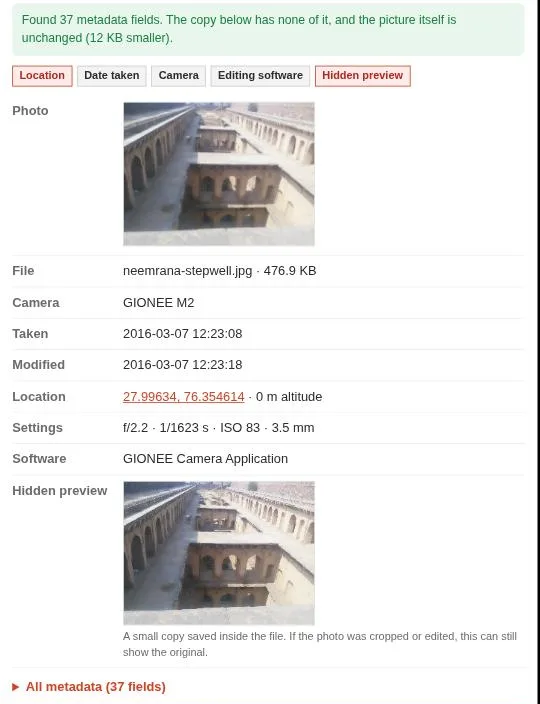
The viewer found 37 metadata fields. The important ones say:
- Camera: a Gionee M2, an Android phone.
- Taken: 7 March 2016 at 12:23:08, by the phone's own clock.
- Location: latitude 27.99634, longitude 76.354614.
- Settings: f/2.2, 1/1623 of a second, ISO 83. A very short exposure like that fits a photo taken outdoors in bright sun, which is what the picture shows.
- Hidden preview: a small copy of the picture saved inside the file. Here it matches the main photo. If someone had cropped the photo with an editor that doesn't update the preview, the preview could still show the whole scene.
Step 3: check the details behind the location
Open All metadata and scroll to the GPS block. Two fields there are worth a closer look.
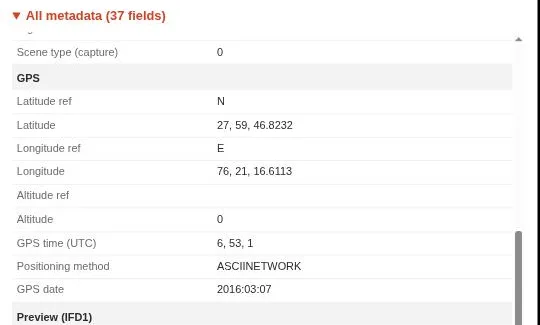
- GPS time (UTC): 6, 53, 1 means 06:53:01 in Coordinated Universal Time, the world's reference clock. India is 5 hours 30 minutes ahead of UTC, so that's 12:23 in India: the same minute as the "Taken" field. The two fields are consistent, which also tells you the phone was set to Indian time. They may both come from the phone's own clock, though, so this shows consistency, not proof.
- Positioning method: NETWORK (the "ASCII" in front of it only names the text format). The phone didn't get its position from GPS satellites. It estimated it from nearby mobile towers or Wi-Fi networks, which can be off by hundreds of metres or more. The altitude of 0 m isn't real either, since the area is a few hundred metres above sea level: the phone simply didn't record one.
Step 4: put the point on a map
Click the coordinates in the viewer to open them on OpenStreetMap, a free map made by volunteers.
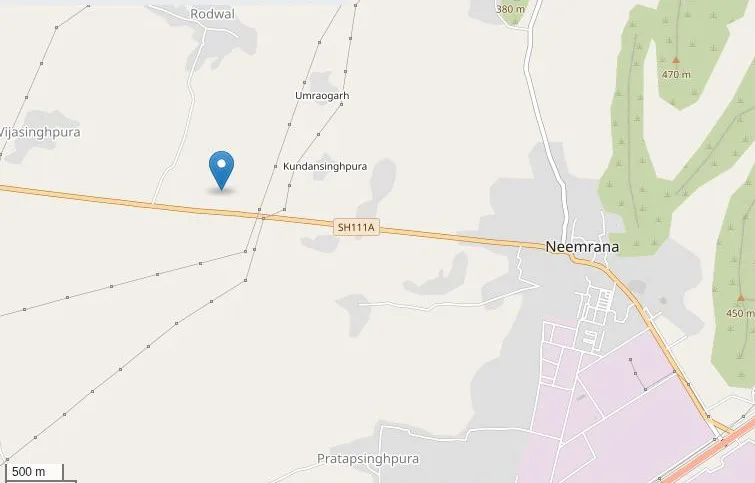
The pin lands in fields about 3 km west of the centre of Neemrana. That's the right area, but probably not the exact spot, which is what you'd expect from a network position. The coordinates tell you the neighbourhood, not the building.
Step 5: compare with the description
Now compare the metadata with what the uploader wrote. The Commons description says "neemrana jaipur india" and gives the date as 22 June 2016, and the file was uploaded in September 2016. So there are three dates, and only the EXIF one claims to be the moment the photo was taken. The place name is also loose: Neemrana is a town about 155 km from the city of Jaipur, according to Wikipedia. Neither is a lie. Descriptions are often written later, from memory, or with the name of the nearest big city.
Conclusion: the metadata says this photo was taken with an Android phone near Neemrana around midday on 7 March 2016, and its two time fields agree. It doesn't prove the photo is genuine, because metadata can be edited, but nothing in it contradicts the picture. That's how you should use metadata: as one set of clues to compare with the picture, the description and other sources.
Step 6: see what a clean copy looks like
In the same viewer, tap Download photo without metadata and open the copy you saved. The picture is the same, but every field is gone.
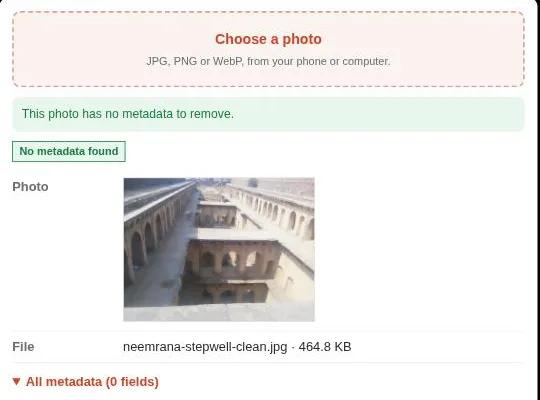
Do the same with your own photos before you post them: open one in the viewer, and if it shows your location, save a clean copy with the viewer or the photo metadata remover. For documents, open a PDF you made, such as your CV, in the PDF metadata viewer and check what it says about the author and the programs before you send it.
Common mistakes with metadata
- Trusting the date blindly. A camera with the wrong clock, a time zone change or a simple edit can make the date wrong. Look for a second clue.
- Thinking "no metadata" means "fake". Most photos online have had their metadata removed by the app that carried them. It's normal.
- Forgetting documents. People remember photo locations but forget that a PDF or Word file can carry their full name and company.
- Turning off location and assuming you're done. The camera setting stops new GPS tags, but photos you already took still have theirs.
- Using metadata on other people. Reading the location in a stranger's photo to find where they live is tracking, not research. OSINT in this blog is for checking facts and protecting your own data, never for locating a person.
An exercise to practise
Spend fifteen minutes on this, using only your own files:
- Pick three photos from your phone: one taken with the camera, one saved from a WhatsApp chat and one screenshot.
- Open each one in the EXIF viewer and write down which fields each has.
- Compare them. The camera photo should have the most, the WhatsApp photo much less, and the screenshot almost none.
- Find one PDF you created and check its author and dates.
- Write two sentences: what surprised you, and which file you'd clean before sharing.
Frequently asked questions
Is metadata the same as EXIF?
No. EXIF is one kind of metadata, the format photos use to store camera details, dates and location. PDFs, Office files, emails, calls and web pages all have metadata in their own formats.
Can someone find my location from a photo I send?
They can if the photo still has GPS metadata. That's often the case with original files, for example a photo sent as a document, attached to an email or uploaded to cloud storage. Remove the metadata before you share, or turn off location tags in your camera app.
Does removing metadata change the photo?
Removing metadata deletes the hidden details, not the picture you see. A good tool keeps the image as it is, without lowering its quality.
Can metadata prove a photo is real?
No. Metadata can be missing, wrong or edited, so it's a clue, not proof. Combine it with other checks, such as finding the earliest copy of the image and comparing what you see with the claimed place and date.
One search tip a week, plus our new guides: follow dedigger on WhatsApp.