
Reverse image search on Google: find where a photo came from
A reverse image search on Google works backwards from a normal search: instead of typing words to find pictures, you give Google a picture and it shows you where that picture, or ones like it, appear on the web. On a computer you do it with the camera icon on Google or a right-click in Chrome; on an Android phone you use Google Lens. This guide shows both, explains how to read the results, and walks through finding the oldest copy of a famous photo.
What a reverse image search does, and when to use it
Google's tool for searching with images is called Google Lens. When you give it a picture, it compares the shapes, colours and details with the billions of images Google has indexed. It returns three kinds of results: pages that use the same image, images that look similar, and information about what is in the picture, such as a landmark, a plant or a product.
For checking facts, the first kind matters most. If you know where else an image appears, you can often work out where it first appeared, who published it and what it really shows. That makes a reverse image search one of the basic techniques of OSINT, short for open-source intelligence, the practice of answering questions with information anyone can lawfully see.
Use it when:
- a photo forwarded in a group claims to show something that happened today, and you want to know if it is old;
- a news story or post uses a picture and you want to see the original, uncropped version and its caption;
- an online shop or listing shows product photos that may have been copied from another site;
- you want to find a larger or better copy of an image you are allowed to use, such as a public-domain picture.
One use is off the table: don't use it to identify or find a private person from their face or their photos. Lens isn't built for that, and it's not what this guide is for. If you want to know where your own photos appear online, that's fine: they are yours.
How to do a reverse image search on Google on a computer
You can use any browser. There are three ways to give Google the picture.
Upload a file or paste a link
- Go to images.google.com or google.com.
- Click the camera icon in the search box. Google calls it Search by image.
- To use a picture saved on your computer, click Upload a file and choose it, or drag the file into the box.
- To use a picture on a website, right-click the image on that site, choose Copy Image Address, paste it into the Paste image link field and click Search.
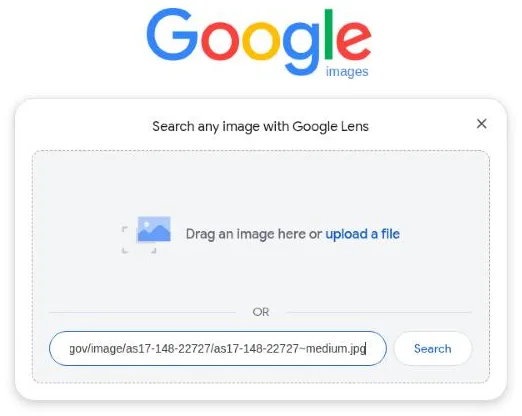
Pasting a link is useful when the image is large, because nothing has to be uploaded from your computer. Make sure you copy the address of the image itself, not of the page: it usually ends in .jpg, .png or .webp. Some websites don't let Google fetch their images. If Lens says No image at the URL, save the picture to your computer and use Upload a file instead.
Right-click an image in Chrome
In Google Chrome, right-click any image on a web page and choose Search with Google Lens. The results open in a panel on the side of the same window, so you don't lose the page you were reading. This is the fastest way when you're checking pictures in a news article.
How to reverse image search on an Android phone
On Android, all three ways go through Google Lens.
From the Google app or Chrome's search bar
- Open the Google app, or a new tab in Chrome.
- In the search bar, tap the Google Lens icon (the small camera).
- To search a photo you already have, choose it from the images on your phone instead of taking a new picture.
From a web page in Chrome
- Touch and hold the image on the page.
- Tap Search image with Google Lens.
Google's help page notes that this option needs Google as Chrome's default search engine. If you don't see it, check Settings > Search engine in Chrome.
From your Gallery
For a photo saved on the phone, such as one you got on WhatsApp, open it in your gallery app, tap Share and choose Search image or Google Lens, if your phone offers it. The name of this option depends on the phone and gallery app. If you can't find it, open the Google app, tap the Lens icon and pick the photo from there; that works on every Android phone with the Google app.
Search only part of the picture
Lens looks at the whole picture by default, and sometimes it focuses on the wrong thing, such as a logo in the corner or a person's shirt. You can tell it what to look at.
- On a phone, tap the image and drag the corners of the box around the part you want. Google's help page says a smaller area gives more specific results.
- On a computer, the results page shows the picture with a selection box. Drag its corners in the same way, and the results update as you move them.
Selecting part of the picture also helps when a screenshot has text, borders or emojis added on top. Crop around the photo itself and Lens has a better chance of finding the clean original.
How to read the results
The results page mixes different things, and it's easy to stop at the first result that looks right. Read it in this order.
1. Look for exact matches
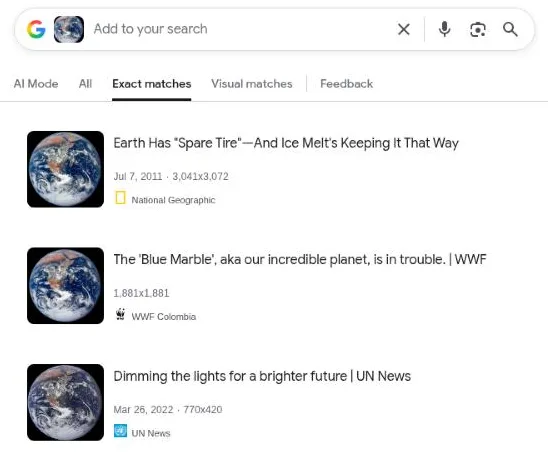
Lens shows visually similar images first, which may be a different photo of the same place. What you want is pages that use this exact image. On the results page, look for the Exact matches tab, next to All and Visual matches, and open it. It lists pages that contain the same picture.
2. Find the oldest copy
Lens doesn't sort results by date, so you have to do it yourself. Open the most promising pages and note the date of each one. Look for:
- the publication date of the article or post that contains the image;
- a larger version of the image, because copies are usually cropped or shrunk, while the original is often the biggest;
- a credit line, a caption or a watermark that names the photographer, agency or organisation.
The oldest reliable page you can find is your best lead for the source. If a picture "from yesterday" appears on a page from five years ago, the claim is false, whatever the picture shows.
3. Check the original caption
Once you have the oldest copy, read what it says the picture shows: where, when and who took it. Then compare that with the claim you started from. Many misleading posts use a real photo with a new caption, so the picture is genuine and the story attached to it is not.
Limits and false matches
A reverse image search is a starting point, not proof. Keep these limits in mind:
- No result doesn't mean new. Lens only finds images on pages Google has indexed. A photo shared only in private chats, or on sites that block search engines, won't show up.
- The first page isn't always the first copy. Pages can be updated, and some show a date that isn't the date the image was added. Check the date inside the article, not only the one in the search result.
- Similar is not the same. Famous landmarks, crowds and floods look alike. Compare small details, such as signs, windows, clouds or a car, before you decide two images are the same photo.
- Edited images can hide. A mirrored, heavily cropped or filtered copy may not match. Try selecting a different part of the picture.
- One engine sees part of the web. Bing Visual Search, TinEye and Yandex index different sites, so a second engine can find what Google missed.
Lens also can't tell you whether an image is real or edited, or whether it was made with AI. A match only tells you where the picture has been published.
What Google does with the image you search
When you upload a picture or paste its link, it's sent to Google to run the search. Google's help page says that when you search with an image link, Google may store the link to improve its products. And if you're signed in, the search can be saved in your Google account activity, like any other search.
So use some care with private pictures. Don't upload photos of documents, ID cards, other people's children or anything you wouldn't want stored on someone else's server. For a private photo, think about whether you need to search it at all. You can review and delete past searches in your Google account under My Activity.
A related point: a photo can carry hidden information, such as the date it was taken and sometimes the GPS location, in its metadata. Lens doesn't read that, but you can see it in your own photos with our EXIF viewer, which runs in your browser without uploading the file.
Worked example: tracing a famous NASA photo
Let's practise with a picture that has a clear, documented source: The Blue Marble, the photo of the whole Earth taken by the crew of Apollo 17 in December 1972. It's a NASA photo, so it's in the public domain, and copies of it are everywhere online, which makes it a good test.
- Open the file The Earth seen from Apollo 17 on Wikimedia Commons, the free media library behind Wikipedia.
- On a computer, right-click the image and choose Search with Google Lens. On a phone, touch and hold it and tap Search image with Google Lens.
- Lens first recognises the subject and shows many pictures of Earth from space. Most are other photos, so they don't help yet.
- Open Exact matches. Now you see pages that use this exact picture: encyclopedias, news articles, school sites, posters.
- Look for the source with the strongest claim to the original. Here, Wikimedia Commons' own file page credits NASA and gives the photo's catalogue number,
AS17-148-22727. Searching that number takes you to NASA's records of the Apollo 17 photos. - Write down what you found: the photo was taken in December 1972 by the Apollo 17 crew, NASA is the source, and any post that presents it as a new image is wrong.
The same steps work for a viral photo. The difference is that with a real rumour, the oldest page might be a news report from another country or another year, and that's exactly what you're looking for.
When you check images regularly, it helps to keep a short note for each one: the image, the pages you found with their dates, the original source and your conclusion. Our OSINT tools page collects more free tools for this kind of checking.
Frequently asked questions
Is Google reverse image search free?
Yes. Google Lens is free on a computer and on Android, and you don't need to sign in to use it in a browser.
Can I reverse image search a photo from WhatsApp?
Yes. Save the photo to your phone, then open the Google app, tap the Lens icon and choose the photo. Keep in mind that WhatsApp compresses photos, so the copy you have may be smaller than the original, but Lens usually still finds matches.
Why does Google show similar images but not the exact one?
Either the exact image isn't on any page Google has indexed, or the copy you have was cropped, flipped or edited. Open Exact matches, try selecting a smaller part of the picture, and try another engine such as Bing or TinEye.
Does Google keep the images I search with?
Google's help page says it may store image links you search with to improve its products, and searches made while signed in can appear in your account activity. Avoid searching private photos and documents, and delete past searches in My Activity if you need to.
One search tip a week, plus our new guides: follow dedigger on WhatsApp.