OSINT techniques: 8 core skills, each with an exercise
OSINT techniques are the practical skills you use to answer a question with public information: searching precisely, tracing where an image came from, reading a file's hidden details, looking at old versions of web pages, checking who registered a domain, comparing a place with maps and satellite images, using shadows to estimate a time, and judging whether a source deserves trust. This guide explains each one for beginners, with a short exercise on neutral material, and then shows how they connect in a single worked example.
What an OSINT technique is
OSINT means open-source intelligence: answering a specific question with information that anyone can lawfully see. If the idea is new to you, start with what OSINT is and the five steps of the intelligence cycle.
A technique is one repeatable way of collecting or checking that information. It isn't the same as a tool. A reverse image search is a technique; Google Lens and TinEye are tools that do it. Tools change names, close or start charging, but the technique stays the same. If you understand why a technique works, you can switch tools without starting over.
Why these techniques matter
Most false claims online aren't clever. They are an old photo with a new caption, a video from another country, a screenshot of a website that never said that, or a shop that was set up last week. Each of those mistakes leaves a trace that one of the techniques below can find in a few minutes.
For a student or a young professional, that means you can check a forwarded photo before sharing it in a family group, judge a job or shopping website before paying, and learn the same basic method that journalists and fact-checkers use.
How OSINT techniques work: the core eight
Each technique below answers a different kind of question. Read the "why it works" part, because that's what tells you when the technique can't help. There's a one-page cheat sheet with all eight further down, ready to print.
1. Advanced search operators
What it is: special words and symbols that tell a search engine exactly what you want. Quotes find an exact phrase, a minus sign removes a word, site: limits results to one website and filetype:pdf returns only PDFs. Combining them for research has a name of its own: Google dorks.
Why it works: a normal search guesses what you mean and mixes in popular pages. Operators remove the guessing, so the one official document you need isn't buried on page five.
Exercise: search "annual report" filetype:pdf site:gov.in and open one result. Then add a minus sign before a word you don't want and see how the list changes.
2. Reverse image and video search
What it is: searching with a picture instead of words, to find other places where the same or a similar image appears. Videos are searched the same way, using still frames taken from them, called keyframes.
Why it works: search engines index billions of images. If a photo was published years ago, a copy is often still online, with a date and a caption next to it. The oldest copy you can find is the best clue to where the picture really comes from. The step-by-step guide to reverse image search on Google covers this on a computer and on Android.
Exercise: pick any well-known photo from a news site, search it with Google Lens and with TinEye, and compare the oldest result each one finds. Different engines often find different copies.
3. Metadata
What it is: data about data. A photo can carry the camera model, the date and time it was taken and sometimes GPS coordinates. A PDF can carry the author's name and the software used to make it. For photos, this information is called EXIF data.
Why it works: devices write these details automatically, and many people never look at them. But metadata is easy to edit and many apps and social networks remove most of it when you upload, so treat it as a clue, never as proof on its own.
Exercise: take a photo with your own phone, then open the original file in the free EXIF viewer, which reads it in your browser. Find the date and the camera model. Then send the same photo to yourself through a chat app and check again: you will usually see that most fields are gone.
4. Web archives
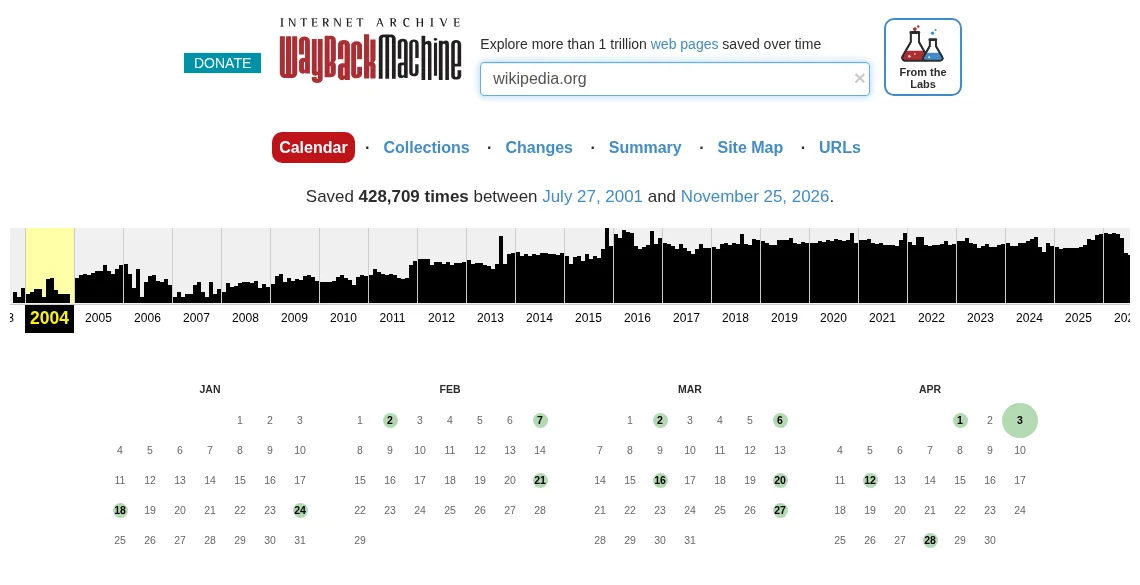
What it is: services that save copies of web pages over time. The best known is the Wayback Machine of the Internet Archive; archive.today is another.
Why it works: websites change and pages get deleted, but an archived copy keeps what the page said on a given date. That lets you check whether a quote was really on a page, or when a website first appeared.
Exercise: enter wikipedia.org in the Wayback Machine, open the oldest capture on the calendar and compare it with today's page. Then use its "Save Page Now" option on a public page you want to keep as evidence.
5. Domain records
What it is: the public registration details of a website's name: when the domain was created, which company it was registered through (the registrar) and when it expires. You can look these up with ICANN Lookup, which uses RDAP, the modern replacement for the old WHOIS system.
Why it works: many fake shops and fake "scheme" websites are only days or weeks old, while a real company's domain is usually years old. The owner's name is often hidden for privacy, and that's normal; the creation date is the useful part.
Exercise: look up wikipedia.org in ICANN Lookup and find its creation date and registrar. Then compare it with a website you use often.
6. Maps and satellite imagery
What it is: comparing what a photo or video shows (a road, a skyline, a river bend) with maps, street-level photos and satellite images of the place it claims to be.
Why it works: buildings, roads and hills don't move. If a claimed location doesn't match, the claim is wrong. Older satellite images also show when something was built: the free Google Earth Pro desktop app has a Historical Imagery option under the View menu, and the Copernicus Browser shows free imagery from the European Sentinel satellites.
Exercise: find a public photo of a famous landmark near you on Wikimedia Commons, then find the same view on a map with satellite imagery. Identify two features, such as a road and a tall building, that appear in both.
7. Chronolocation with shadows
What it is: estimating when a photo was taken from the sun's position. Chronolocation means locating something in time, the way geolocation locates it in space.
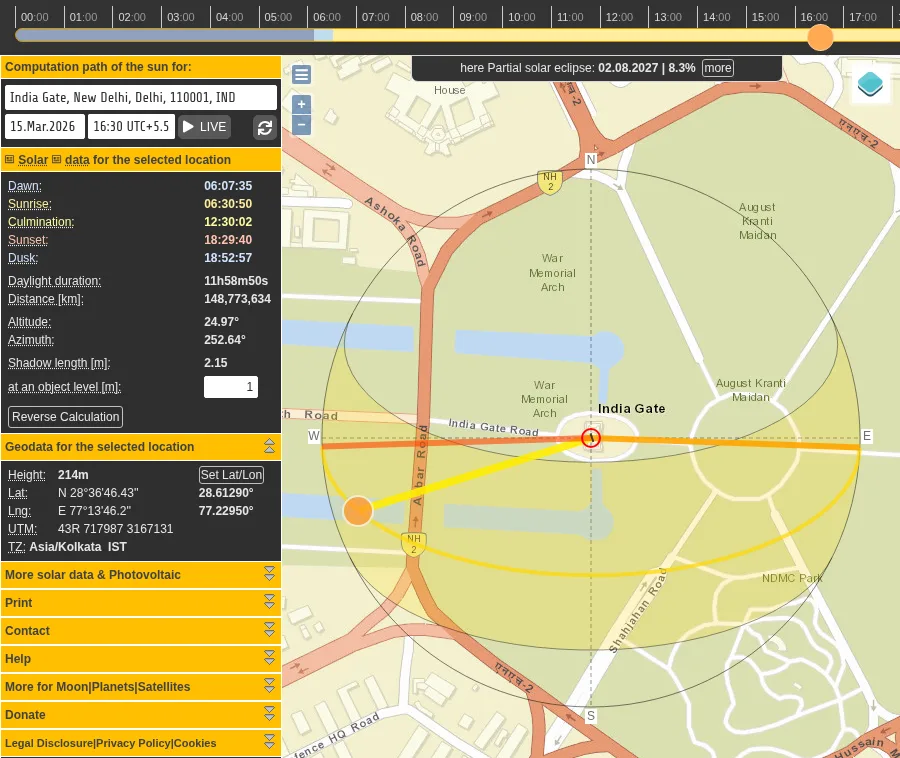
Why it works: on a given day at a given place, the sun is in a predictable position, so shadows point in a predictable direction and have a predictable length. The free SunCalc map shows the sun's direction for any place and time, and the length of the shadow an object of a given height would cast. If a photo claims "taken this morning" but the shadows only fit late afternoon, something is wrong.
Exercise: at a known time, photograph the shadow of a pole or a tree outside your home. Then open SunCalc, set your location and that time, and check whether the shadow direction on the map matches your photo.
8. Judging sources
What it is: deciding how much to trust each piece of information before you build on it.
Why it works: every other technique produces material, and some of it will be wrong. Ask four questions of each source: who published it, how do they know, when was it published, and does anyone independent confirm it? A government notice on its official website, an established news outlet and an anonymous account created last month don't deserve the same weight.
Exercise: take one claim from a forwarded message and find two independent sources that confirm or contradict it. Write down who each source is and how they would know.
Pivoting: how one fact leads to the next
Experienced investigators rarely use one technique alone. They pivot: they use what one technique found as the starting point for the next. A reverse image search gives you an older copy of a photo with a caption naming a place; the place lets you check maps; the maps show which way the street faces; the street's direction lets you test the claimed time with shadows.
Pivoting is powerful, which is why it needs a limit. Pivot from facts about events, places, files and organisations, never towards finding out who a private person is or where they live. That isn't research; it's tracking, and it can be illegal. The guide on whether OSINT is legal explains where that line is.
Keeping notes and archived links
An answer nobody can check isn't worth much, including to you a week later. As you work, keep a simple log with columns for what you found, the source, the link, the date and time you saw it, and an archived copy of the link. Take a screenshot that shows the address bar. When you finish, mark how confident you are in each finding, and say what you still don't know.
OSINT techniques cheat sheet
All eight techniques on one page: the question each one answers, what to try first, and the mistake to avoid. Keep it next to you for your first investigations, or print it for a class or a club.
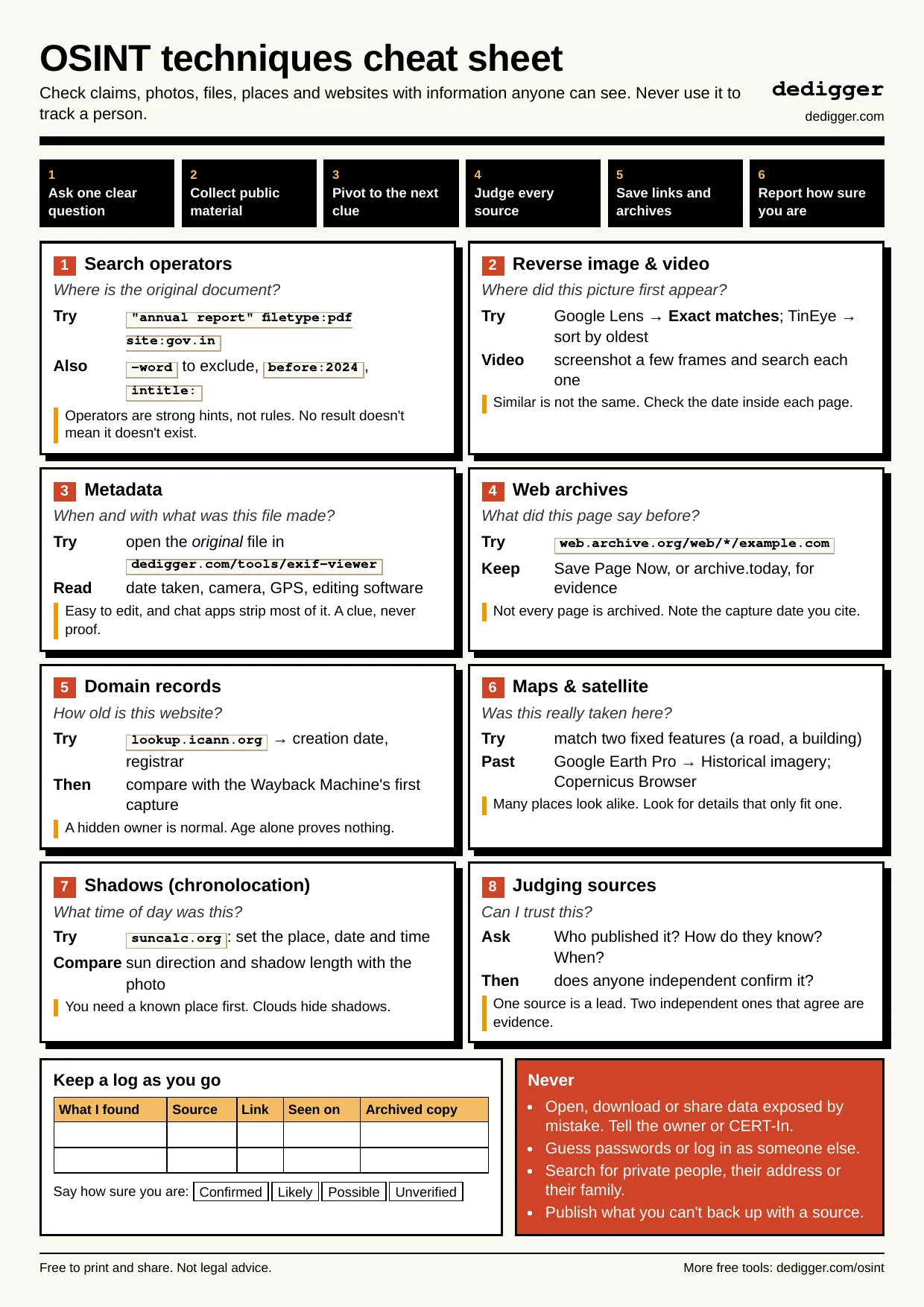
A worked example: one photo, five techniques
Imagine a post in a group claims that a photo shows heavy flooding near a well-known monument "this morning". Here is how the techniques connect.
- Question. Was this photo taken near that monument, this morning?
- Reverse image search. You save the image and search it with Google Lens and TinEye. TinEye, sorted by oldest, shows a copy on a news site from three years ago.
- Web archive. You open that news page in the Wayback Machine and find a capture from that year, with the same photo and a caption about an earlier flood. The photo existed long before "this morning".
- Maps. You compare the photo with satellite imagery and street-level photos of the monument. The buildings match, so the place is probably right, but the date isn't.
- Judging sources. The forwarded post has no named author; the news site is an established outlet with a dated article. You trust the dated article more.
- Report. You write: "Real place, old photo. Published on [site] on [date], archived [link]. Not from today."
Notice that you didn't need metadata or shadows here: the earliest copy already answered the question. Use the techniques the question needs, not all of them every time. More tools for checking files and pages are on the OSINT tools page.
Common mistakes beginners make
- Stopping at the first result. The first copy you find is rarely the oldest. Try at least two engines.
- Treating metadata as proof. It can be missing or edited. It supports a conclusion; it doesn't make one.
- Not saving as you go. Pages disappear. Archive links while you work, not afterwards.
- Confirmation bias. Looking only for evidence that agrees with what you already believe. Actively search for what would prove you wrong.
- Going too far. If a search shows personal data exposed by mistake, don't open, download or share it. Tell the website owner or CERT-In instead.
A practice exercise
Pick a viral photo that a fact-checking site has already checked, but don't read their verdict yet. Then:
- write one precise question about the photo;
- run a reverse image search on two engines and note the oldest copy;
- archive that page and note its date;
- compare the place with a map if the photo shows a landmark;
- write a two-line conclusion with how confident you are.
Now read the fact-checker's article and compare. Where did they go further than you, and which technique did they use?
Frequently asked questions
What are the basic OSINT techniques?
The core ones are advanced search operators, reverse image and video search, reading metadata, web archives, domain records, maps and satellite imagery, chronolocation with shadows, and judging sources. Most investigations use only two or three of them.
Do I need to know coding to learn OSINT techniques?
No. Everything in this guide works in a web browser or a free app. Some analysts write small scripts to save time on big projects, but you can learn and practise the core techniques without any coding.
Which OSINT technique should I learn first?
Start with search operators and reverse image search. They answer the most common question you'll meet, whether a photo or claim is what it says it is, and they take only a few minutes to learn.
Can I use these techniques to find information about a person?
This guide doesn't cover that, on purpose. The techniques here are for checking claims, places, files and organisations, and for seeing what is public about yourself. Using them to identify or follow a private person can be harassment and may break the law.
One search tip a week, plus our new guides: follow dedigger on WhatsApp.