
How to make a flyer on Google Docs that people actually read
Some links in this guide are affiliate links: if you buy through them, dedigger may earn a commission at no extra cost to you. Commissions do not decide what we include, and we also list options that pay us nothing.
To make a flyer on Google Docs, open a blank document, set the page size and margins in File > Page setup, add one big headline, one image and a few lines of details, then download it as a PDF to print or share. It's free, it works in any browser and you can do most of it from an Android phone. This guide walks through each step, plus the design choices that decide whether anyone stops to read your flyer.
Before you start: decide what the flyer has to say
A flyer gets two or three seconds of attention on a notice board or in a WhatsApp group. Before you open Docs, write down four things:
- The one message. "Maths tuition for Class 10", "Room for rent near the station", "College fest on 14 December". If you can't say it in one line, the flyer will be hard to read.
- The details. Date, time, place, price or fee. Only what someone needs to decide.
- The next step. Call, send a WhatsApp message, scan a code, turn up at the gate.
- Who it's for. Students, parents, neighbours or customers. It changes the words and the picture you pick.
Everything else is decoration. Keep this list next to you while you design and cut anything that isn't on it.
How to make a flyer on Google Docs, step by step
These steps are for a computer, where Docs has every option. The phone version is further down.
1. Set up the page
- Open docs.google.com and start a Blank document.
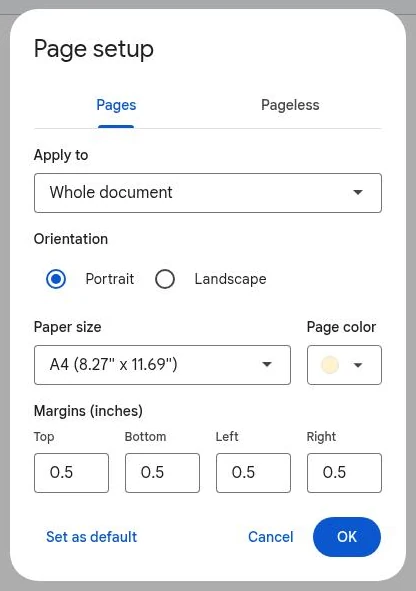
- Go to File > Page setup. At the top of the dialog, make sure Pages is selected, not Pageless. In pageless mode Docs hides paper size, margins and the image layout options you need for a flyer.
- Choose the paper size. In India and most of Asia, shops print on A4. In the US, use Letter.
- Pick Portrait for a classic notice-board flyer or Landscape for something like an event banner.
- Set the margins to about 0.5 inch (1.27 cm) on every side. Home and shop printers can't print right to the edge, so don't go to zero.
- If you want a coloured background, choose a light Page color here. Dark backgrounds use a lot of ink and can look patchy on a cheap printer.
2. Write the headline
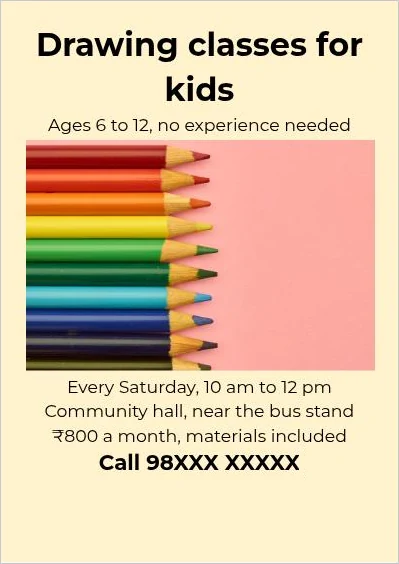
Type your one message at the top. Select it and make it big: 40 to 60 points is normal for an A4 flyer. Use a bold, plain font such as Roboto, Montserrat or Oswald. You'll find more under Font > More fonts in the toolbar.
Keep the headline short enough to fit on one or two lines. If it wraps onto three, shorten the words rather than shrinking the text.
3. Add an image
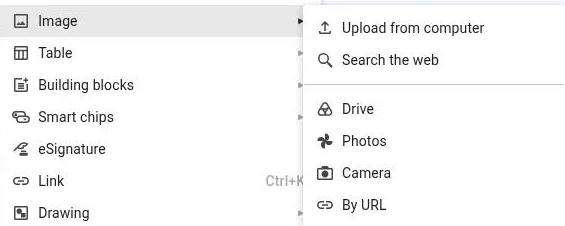
Click where you want the picture and go to Insert > Image. You can upload a file from your computer, pick one from Google Drive or Google Photos, take one with your camera, paste a link with By URL, or use Search the web to look for a picture on Google Images. When you preview a result there, Docs tells you whether it is labeled for commercial use.
Use your own photos where you can: a real photo of the room, the shop or last year's event works better than a generic stock picture, and you know you have the right to use it. If a photo needs cropping, brightening or a cleaner background first, one of these free Photoshop alternatives will do it before you bring it into Docs.
4. Place the image where you want it
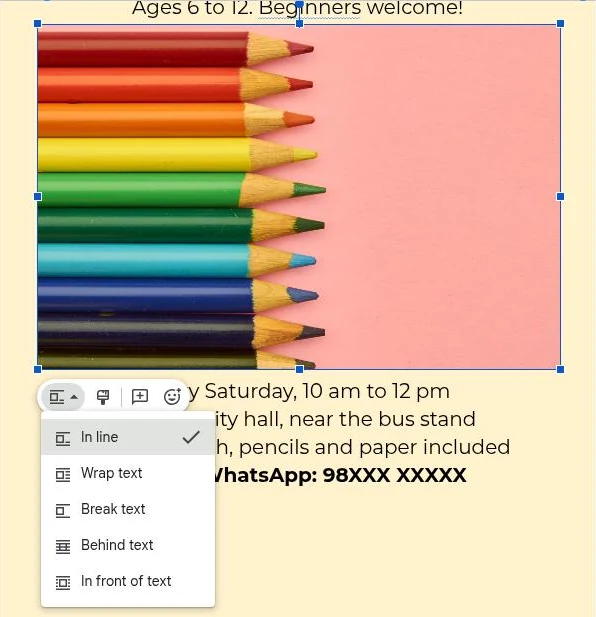
Click the image and a small toolbar appears under it. Its first button opens the layout options:
- In line treats the image like a big letter in the text. This is the easiest one to keep tidy.
- Wrap text lets the text flow around the image, useful for a picture beside a block of details.
- Break text puts the image on its own line with text above and below.
- Behind text turns the image into a background. Lower its brightness in Image options so the words on top stay readable.
- In front of text lets you drag the image anywhere, on top of everything.
For a first flyer, In line or Break text is safest. Free-floating images can jump to another spot when you edit the text above them.
5. Add the details and the call to action
Under the image, write the details as short lines, not a paragraph. A small table with no borders is a good trick to line things up: Insert > Table, two columns, then set the border width to 0 in the table toolbar. Put labels like "When" and "Where" on the left and the answers on the right.
End with the next step in bold, for example the phone number in 20 point text. That is what people photograph with their phone.
Design tips that get a flyer read
- One focus. One headline, one image, one call to action. A flyer that says five things says nothing.
- Two fonts at most. One bold font for the headline, one plain font for everything else.
- Strong contrast. Dark text on a light background, or white text on a dark block. Yellow on white looks bright on screen and disappears on paper.
- Empty space. Space around the headline makes it stand out more than a bigger font would.
- Readable from a step away. Print one copy, stick it on a wall and read it from two metres. If you have to step closer, the text is too small.
- Check the facts twice. A wrong date or phone number wastes every copy you print.
If you'd rather not start from a blank page, our Google Docs flyer templates search finds flyers that people have shared publicly on Google Drive. Open one, choose File > Make a copy and replace the text and pictures with your own.
Making a flyer on an Android phone
The Google Docs app for Android can handle a simple flyer:
- Create a new document with the + button and tap Edit.
- Tap More (the three dots) and then Page setup to change orientation, paper size and page colour.
- Type your headline, select it and use the A (format) button to make it bigger and bold.
- To add a picture, tap Insert (the + at the top), then Image, and choose where it comes from.
The app's help page doesn't describe the text wrapping options for images, so a phone flyer works best with a simple layout: headline, image, details, all stacked. For more control, open the same file on a computer later; it's already in your Drive.
Phone-first apps are another option. Canva has a free plan with flyer layouts made for mobile and lets you download designs as images. It's handy when the flyer will mostly live on WhatsApp and Instagram rather than on a wall.
Printing your flyer
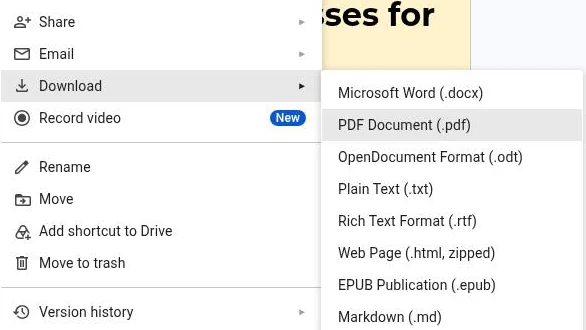
Download the flyer with File > Download > PDF Document (.pdf) and send that file to the print shop, not the Docs link. A PDF keeps your fonts and layout exactly as you see them, even on a computer that doesn't have the same fonts.
- Open the PDF before you send it and check that nothing spilled onto a second page. If it did, reduce the image size a little or remove an empty line at the end.
- Ask the shop to print at "actual size", not "fit to page", so your margins stay the same.
- For many copies, a black and white version is far cheaper. Check that your flyer still reads well in greyscale before choosing colour.
- Need two A5 flyers per A4 sheet? Many print shops can do this from one PDF, so ask before you redesign anything.
Sharing the flyer as an image
Google Docs can't download a document as a JPG or PNG. For WhatsApp status, Instagram or a Facebook group, an image works better than a PDF because it shows up right in the chat. Download the PDF first and convert it with our PDF to JPG tool, which runs in your browser.
When you share it, put the key details in the message text too: the date, place and phone number. Search and screen readers can't read words inside an image, and people often forward the text without opening the picture.
Frequently asked questions
Does Google Docs have flyer templates?
The Docs template gallery is mostly letters, resumes, reports and proposals. For flyers, start from a blank page with the steps above, or copy a flyer that someone has shared publicly on Google Drive and make it your own.
What size should a flyer be?
A4 is the standard in India and most countries; Letter is the US equivalent. A5, half an A4 sheet, is a cheaper choice for handouts.
Why can't I move the image freely?
Your document is probably in pageless format, or the image is set to In line. Switch to Pages in File > Page setup, then click the image and choose In front of text or Wrap text.
Is making a flyer in Google Docs free?
Yes. All you need is a free Google account. The flyer is saved in your Google Drive and you can download it as a PDF as many times as you like.
One search tip a week, plus our new guides: follow dedigger on WhatsApp.