
How to make a certificate in Google Docs, step by step
Some links in this guide are affiliate links: if you buy through them, dedigger may earn a commission at no extra cost to you. Commissions do not decide what we include, and we also list options that pay us nothing.
To make a certificate in Google Docs, set the page to landscape in File > Page setup, add a border with a one-cell table or a drawing, type the title, the person's name and the reason in large centred text, add a signature, and download it as a PDF. You can start from a blank page or copy a certificate someone already designed. This guide covers both, plus making one for every person on a list.
What a good certificate needs
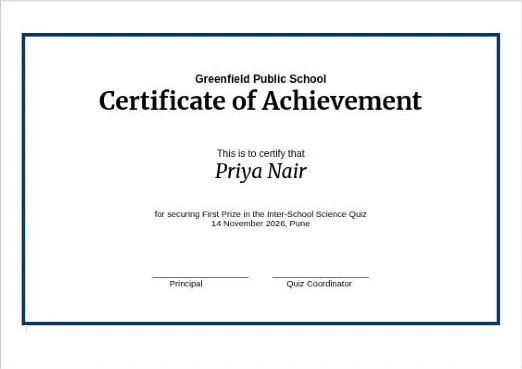
Write the text down before you open Docs. Most certificates have these parts, from top to bottom:
- Who gives it. The name of the college, club, school or company, often with a logo.
- The title. "Certificate of Participation", "Certificate of Achievement", "Certificate of Completion" or "Certificate of Appreciation".
- A short line such as "This is to certify that" or "is proudly presented to".
- The name, the biggest text on the page after the title.
- The reason, such as "for securing First Prize in the Inter-College Quiz".
- The date and the place.
- One or two signatures with the signer's name and role under each line, for example "Principal" or "Event Coordinator".
Check the spelling of every name. A certificate with a wrong name is the one nobody keeps.
Option 1: start from a ready-made certificate
The Docs template gallery
On a computer, open docs.google.com and click Template gallery at the top, or go to File > New > From template gallery inside any document. It is mostly letters, resumes and reports, so it may not have a certificate style you like.
Certificates shared publicly on Google Drive
Teachers, clubs and designers often share their certificate files publicly on Google Drive. Our Google Docs certificate templates search finds them for you. When you open one you like:
- Click File > Make a copy. The copy goes into your own Drive and you can edit it freely. The original stays as it is.
- Replace every piece of text: the organisation, the title, the reason, the date and the names on the signature lines.
- Swap any logo for your own. Click the image, then Replace image in the toolbar.
Everything else in this guide applies to a copied template too.
Option 2: how to make a certificate in Google Docs from a blank page
These steps are for a computer, where Docs has every option.
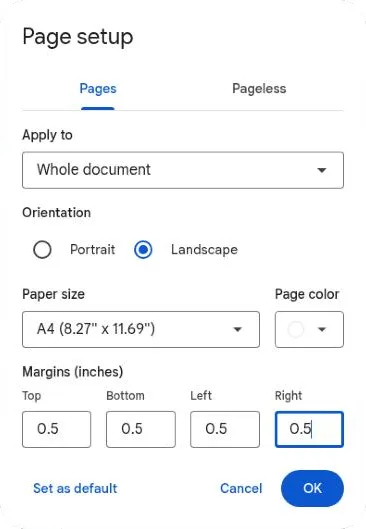
1. Turn the page to landscape
- Open a Blank document.
- Go to File > Page setup. Make sure Pages is selected at the top, not Pageless. Pageless documents have no paper size or margins, which a certificate needs.
- Choose Landscape.
- Pick the paper size: A4 in India and most of the world, Letter in the US.
- Set all four margins to about 0.5 inch (1.27 cm). Printers can't print right to the edge, and the border will sit inside these margins.
- Optional: choose a light Page color, such as pale cream.
2. Add a page border
Google Docs has no page border button like Microsoft Word. The Format > Paragraph styles > Borders and shading option only draws lines around paragraphs, not around the page. Two tricks work well instead:
- A one-cell table. Go to Insert > Table and choose 1 × 1. Click inside the cell and press Enter until the table fills the page without spilling onto a second one. With the cursor in the table, go to Format > Table > Table options, open Color in the side panel and set the Table border to 3 to 6 pt and the colour you want. All your text goes inside this cell, so it stays inside the frame.
- A drawing. Go to Insert > Drawing > New, draw a rectangle with the Shape tool, set its fill to transparent and give it a thick border. Draw a second, thinner rectangle inside the first for a classic double frame. Click Save and close, then click the drawing in your document, choose Behind text and stretch it to the margins.
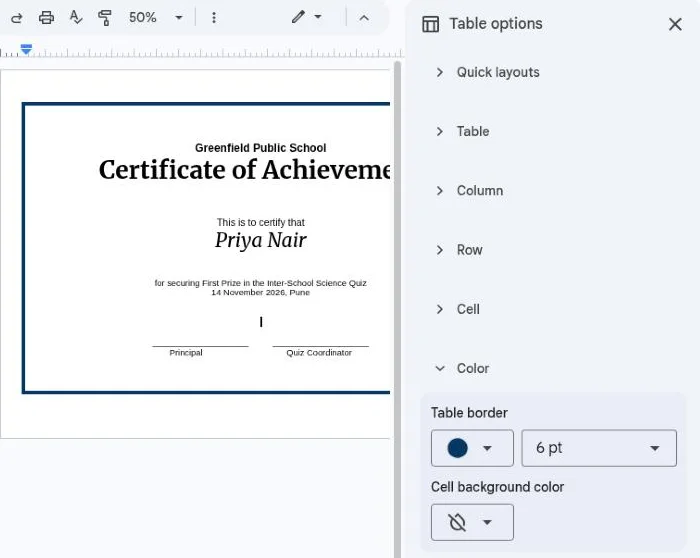
The table is easier to keep tidy; the drawing gives you more control. A decorative border picture of your own also works: insert it, set it to Behind text and stretch it across the page.
3. Write the text and choose fonts
Set the alignment to centre and type the text from the list above. Then format it:
- The title at 36 to 48 points, in a strong serif font such as Playfair Display or Cinzel.
- The name at 32 to 40 points. A script font such as Great Vibes looks formal, but check that it stays readable when printed.
- Everything else at 12 to 16 points, in a plain font such as Lato or Roboto.
These fonts aren't in the short list you see at first. Open the font menu in the toolbar, click More fonts, search for the name and click it to add it.
The design rules are the same as for any printed page. Our guide on how to make a flyer on Google Docs explains them in more detail.
4. Add a logo or a seal
Click at the top centre and go to Insert > Image > Upload from computer. Keep the logo about 2 to 3 cm high. For a seal in a corner, choose In front of text in the small toolbar under the image and drag it into place.
5. Add signatures
Near the bottom, insert a borderless table with two columns, one for each signer. In each cell, type a line of underscores or leave space, then the signer's name and role underneath. To remove the borders, select the table and set the border width to 0 pt.
For the signature itself you have three choices:
- Sign by hand after printing. This is the most common choice for printed certificates.
- Insert a picture of the signature. Sign on plain white paper, photograph it in good light, crop it tight and insert it above the line with In front of text.
- Draw it. In Insert > Drawing > New, open the Line menu and choose Scribble to sign with the mouse or a touchpad.
Be careful with signature pictures. Anyone who can open the document can copy the image. Keep the file shared with as few people as possible and send certificates out as PDFs, not as editable Docs links.
6. Check it before you print
Open File > Print to preview it. Look for a second blank page, text touching the border or a name that wraps onto two lines.
Making one certificate per person
For five people, the simplest way is one page per person in the same file:
- Finish the design for the first person.
- Select everything on the page with Ctrl+A and copy it with Ctrl+C.
- Click at the end of the page and add a page break with Insert > Break > Page break.
- Paste with Ctrl+V and change the name. Repeat for each person.
If your layout doesn't paste cleanly, make a copy of the whole file for each person with File > Make a copy instead.
Then download the file with File > Download > PDF Document (.pdf). You get one PDF with a page per person. That is perfect for printing in one go. If you need to email or WhatsApp each person their own file, split the PDF into single pages with our merge and split PDF tool, which runs in your browser.
For fifty or a hundred names, copying by hand gets slow and mistakes creep in. Mail merge tools can fill the names in from a Google Sheet instead.
Making a certificate on an Android phone
The Google Docs app for Android is fine for editing a certificate that already exists, for example changing names in a copied template:
- Open the document and tap the Edit button (the pencil).
- Tap a name, change it, and tap the tick to save.
- To change the orientation, tap More (the three dots), then Page setup.
- To send it, tap More, then Share & export, and send a copy as a PDF.
Building the design itself is easier on a computer. The file is in your Google Drive, so you can switch devices any time.
If you need a fancier design than Docs can manage, Canva has a free plan with certificate layouts you can edit on a phone and download as a PDF or an image.
Frequently asked questions
Does Google Docs have certificate templates?
The Docs template gallery is mostly letters, resumes and reports, so it may not include a certificate. You can start from a blank landscape page with the steps above, or copy a certificate that someone has shared publicly on Google Drive with File > Make a copy.
How do I put a border around the page in Google Docs?
Docs has no page border setting. Insert a 1 × 1 table that fills the page and give it a thick border, or draw a rectangle in Insert > Drawing > New and set it to Behind text.
What size should a certificate be?
A4 landscape is the usual size in India and most countries, and Letter landscape in the US. Set it in File > Page setup before you start designing, because changing it later moves everything around.
Can I make a certificate in Google Docs for free?
Yes. You only need a free Google account. The file is saved in your Google Drive and you can download it as a PDF as many times as you like.
One search tip a week, plus our new guides: follow dedigger on WhatsApp.